Posted on

EMS Gateway E32 V2 connection examples

Below various ways to connect the EMS Gateway E32 V2 to the heat source (boiler/heat pump/etc), power and the home network. Also some examples of adding DS18B20 temperature sensors are shown.

There are two ways to connect the EMS Gateway to the EMS bus of the heat source:

  • EMS bus accessed via the EMS service jack and the BBQKees EMS service cable
  • EMS bus accessed via the EMS screw terminals inside the heat source

EMS connection via EMS service jack

The image below shows the most convenient method to connect the EMS Gateway by using the BBQKees EMS service cable plugged into the EMS Gateway and the EMS service jack of the heat source.
The EMS service jack has both EMS bus wires inside but also a third 12V DC power line for powering the Gateway.

If you use the WiFi feature of the EMS Gateway instead of the LAN port, this single cable is all there is to it!
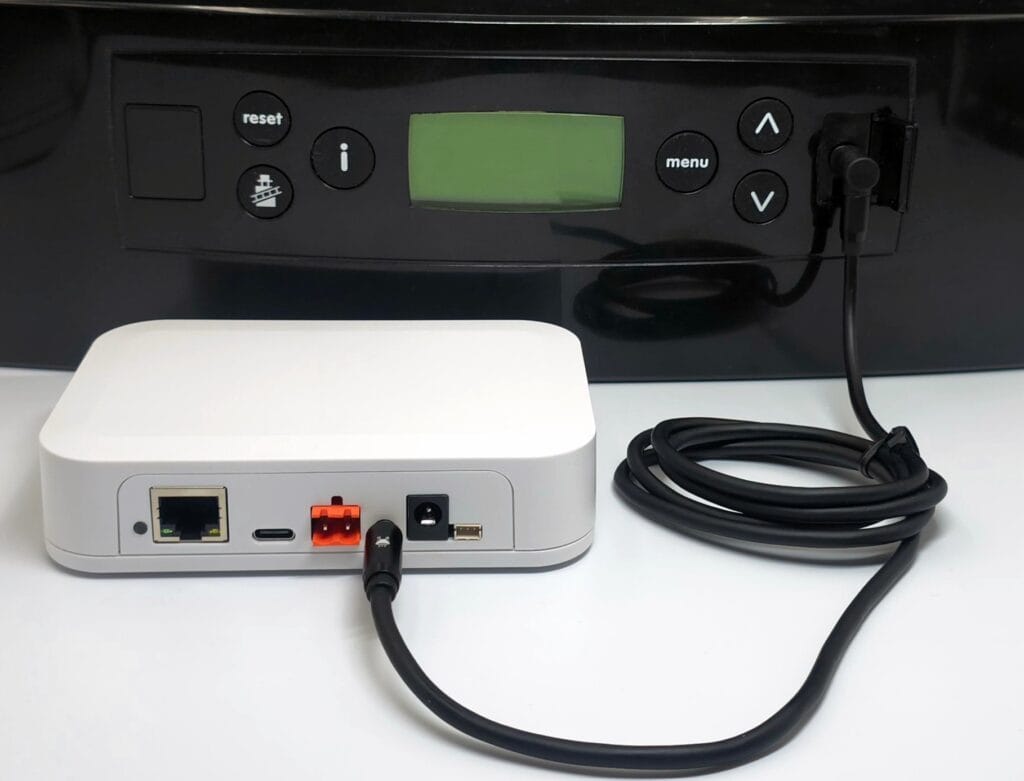
BBQKees Electronics EMS Gateway E32 V2 connected via EMS service cable

Even though the EMS service jack powers the EMS Gateway, you may want to connect the permanent power supply as well. When the heat source reboots, the 12V DC in the EMS service jack will often momentarily be removed so the Gateway will reboot as well. If this is not preferable you can prevent this by connecting the 12V DC or USB-C power supply to the Gateway as shown below.

Here we also attached a LAN cable, so the EMS Gateway connects to the home network via LAN instead of WiFi.
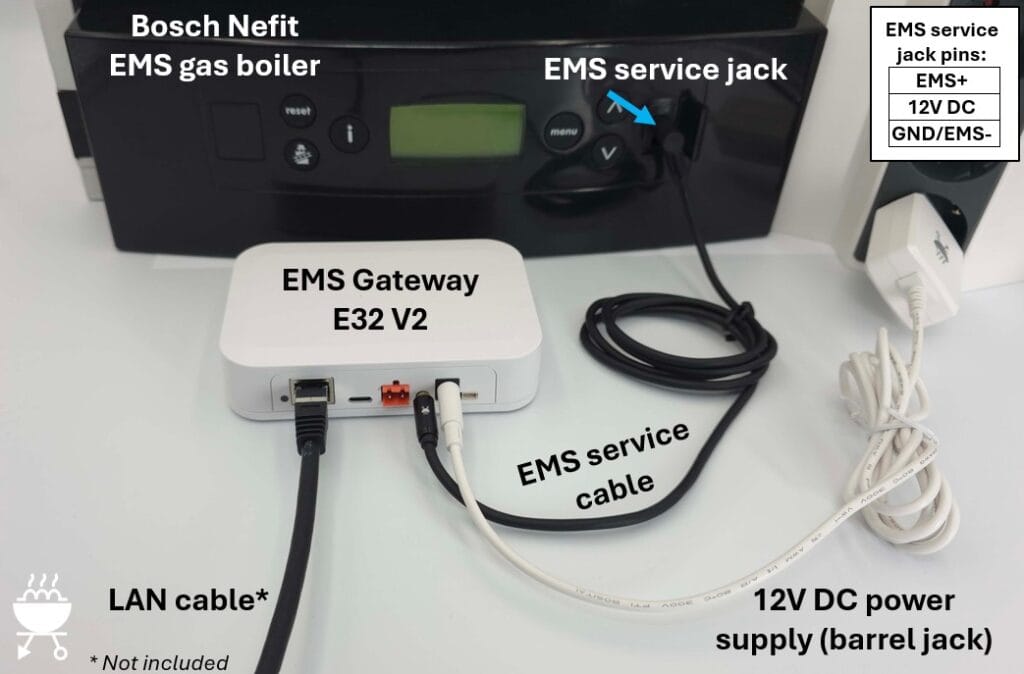
EMS E32 V2 Gateway connected to boiler via EMS service jack
EMS E32 V2 Gateway connected to boiler via EMS service jack + permanent power supply + LAN

Depending on when the EMS Gateway has been purchased the product box will have contained either a 12V DC power supply with a barrel jack plug, or a 5V DC USB-C power supply. Just use the type of power supply that came with your EMS Gateway KIT.
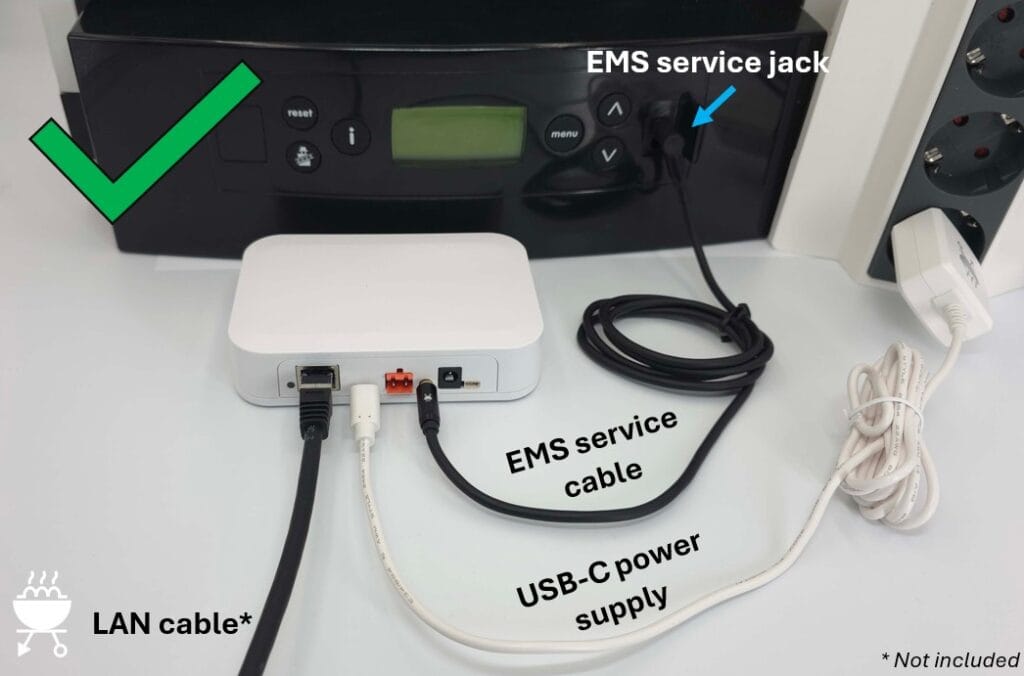
EMS E32 V2 Gateway connected to boiler via EMS service jack + permanent power supply (USB-C) + LAN

EMS connection via EMS bus screw terminals

When the EMS service jack is not available on your heat source you can connect the EMS Gateway to the EMS screw terminal inside the heat source. Even if your heat source does have an EMS service jack, but you do not want to use it for some reason, you can also use this alternative bus connection method.
Depending on the specific model of boiler or heat pump the EMS bus may be indicated by a number of different icons or markings like ‘BUS’, ‘EMS’, ‘BB’. In general the EMS bus plug is orange on boilers, but usually blue on heat pumps.

Always consult the heat source manual and our extensive product wiki to make sure you are connecting the EMS Gateway to the correct screw terminals. Also turn off the mains power to the heat source before working on it.

If you make use of the EMS screw terminals inside the heat source, you always need to connect an external power supply to the EMS Gateway as well (12V DC in the image below).
This is because the EMS bus cannot power the EMS Gateway over the EMS bus data line.
In the image below the EMS Gateway connects to your home network via WiFi.
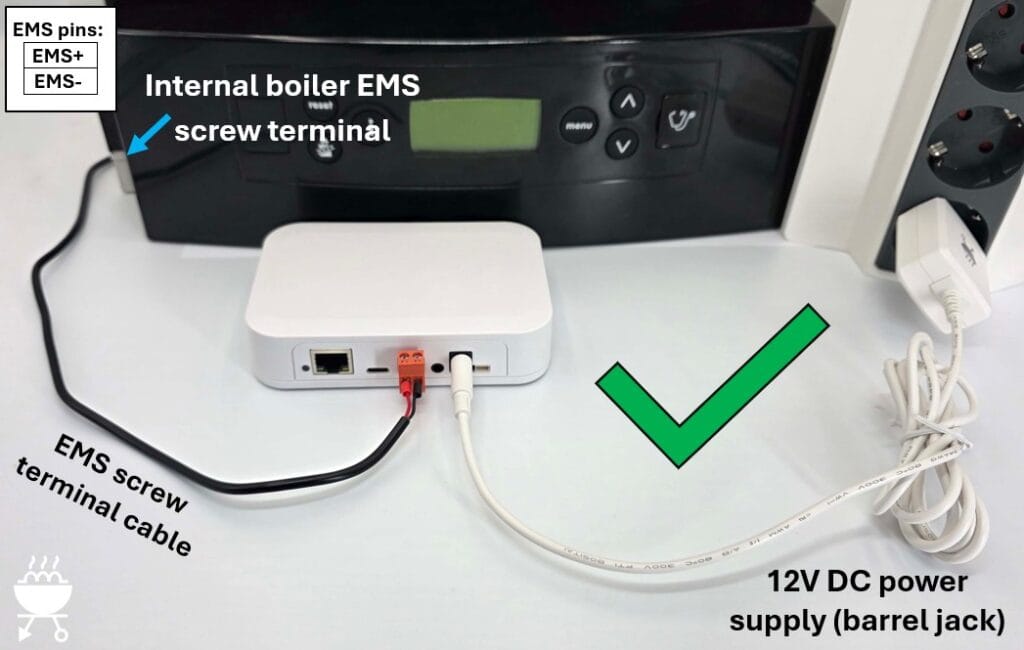
EMS E32 V2 Gateway connected to boiler via EMS screw terminals + permanent power supply + WiFi
EMS E32 V2 Gateway connected to boiler via EMS screw terminals + permanent power supply (12V DC) + WiFi

In the image below you see the alternative USB-C power supply. The EMS Gateway is connected to the home network via a LAN cable.
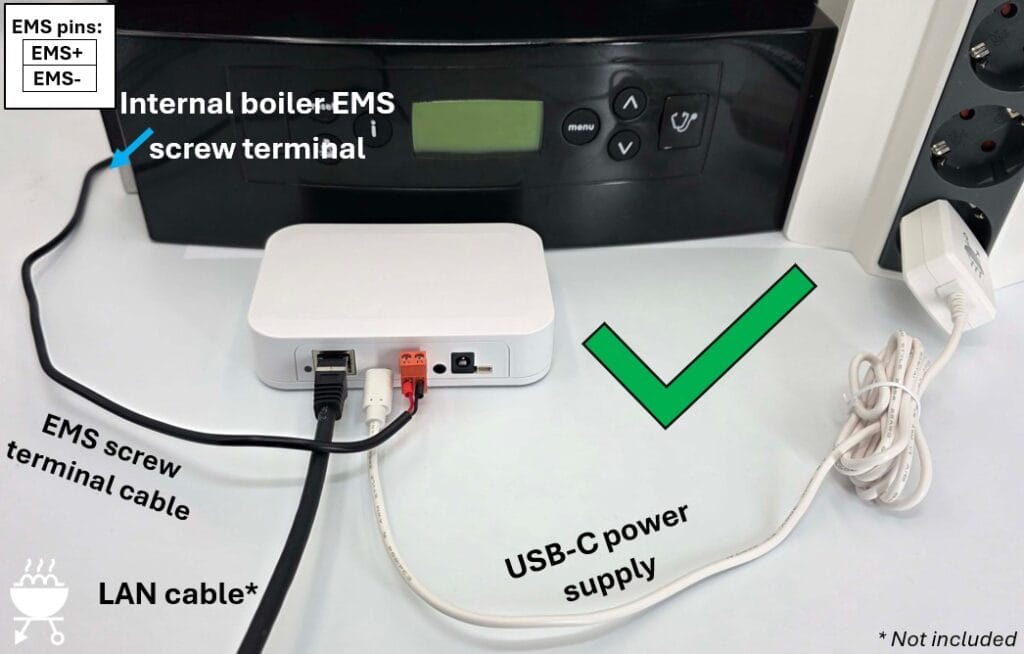
EMS E32 V2 Gateway connected to boiler via EMS screw terminals + permanent power supply (USB-C) + LAN

WRONG connection method

The EMS Gateway can be connected to the EMS heat source via the EMS service jack OR the EMS screw terminal. NEVER connect both at the same time. The EMS bus signals EMS+ and EMS- are present in both cables. If you connect both simultaneously, you have a 50% chance of short cutting the EMS bus.

Also NEVER connect the EMS bus of two independent heat sources together.
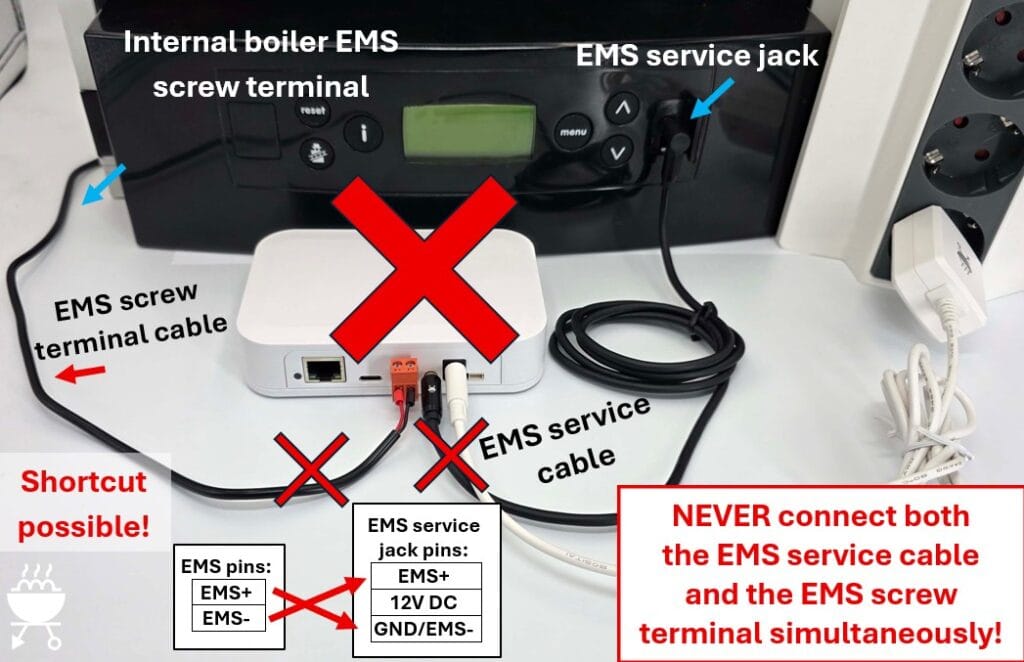
Forbidden simultaneous connection of both EMS service cable and EMS screw terminals

Adding DS18B20 temperature sensors

A convenient feature of the EMS Gateways is the possibility to connect (multiple) DS18B20 temperature sensors.
The EMS-ESP firmware automatically recognizes them and will send the temperature information to your home automation as well.

You need to source these DS18B20 sensors yourself. There are several types of these sensors but the most often you will see them in the waterproof version with a cable attached.

Simply attach one or more of these sensor cables to the small JST cable that is included with each Gateway. Make sure you follow the correct wire colors.
The best way to wire multiple sensors together is by soldering. However, in most cases using a screw terminal or some WAGO clamps will work as well.
When you are sure it is wired up correctly you can insert the JST cable into the EMS Gateway.
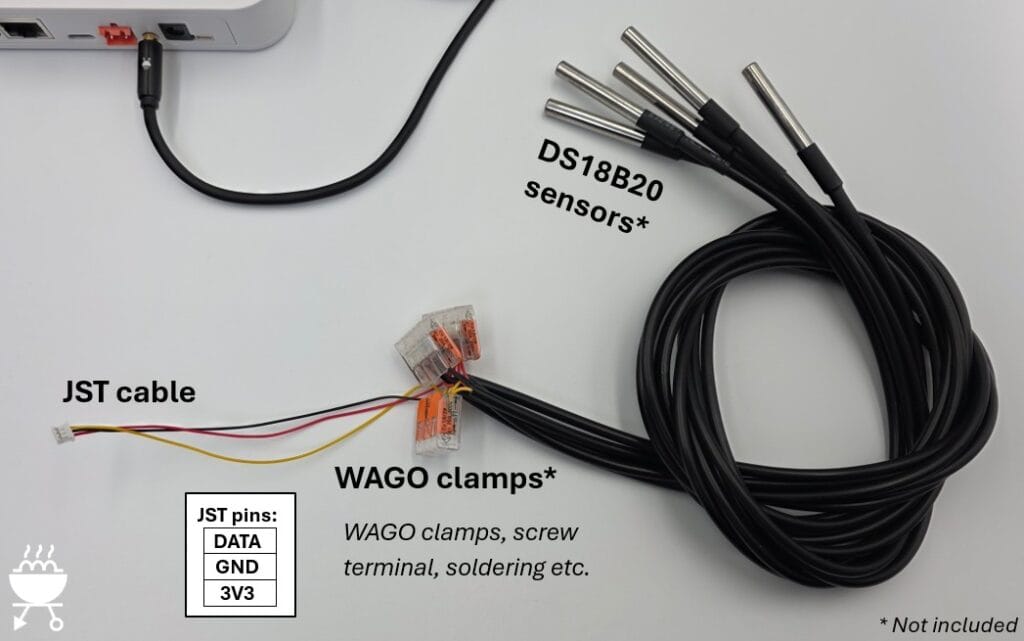
DS18B20 sensors on Gateway E32 V2 via WAGO clamps

In the example below the DS18B20 sensors are wired together with a screw terminal (Lusterklemme). The EMS Gateway is connected to the boiler via the EMS service jack and to the home network via WiFi.
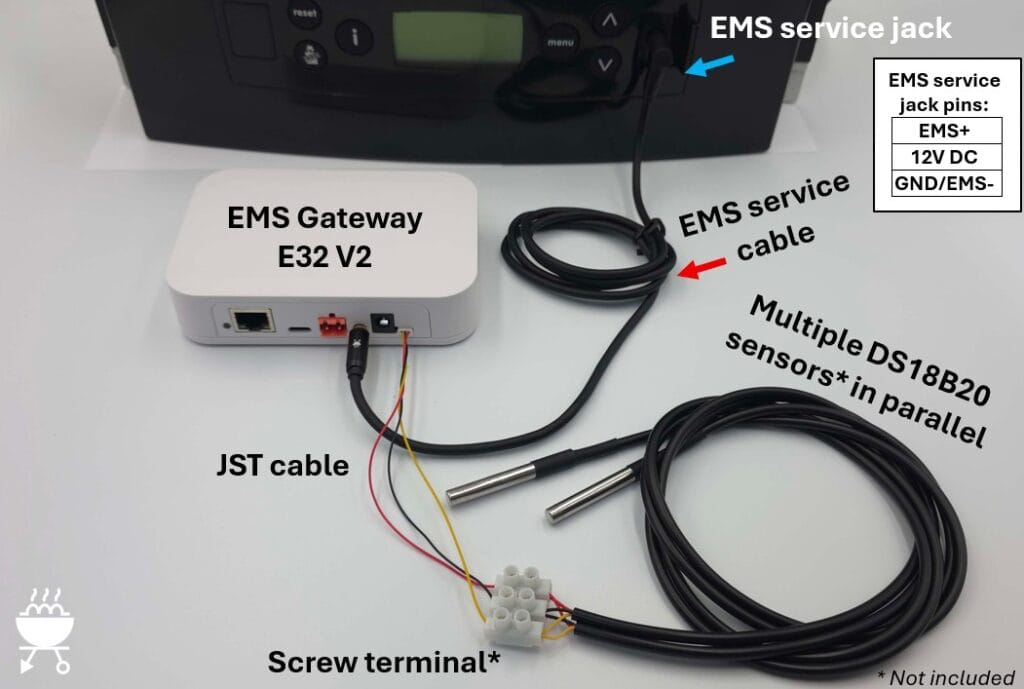
EMS E32 V2 Gateway connected to boiler via EMS service jack + optional DS18B20 sensors + WiFi

As a final example below a LAN cable is attached so the EMS Gateway connects to the home network via LAN instead of WiFi.
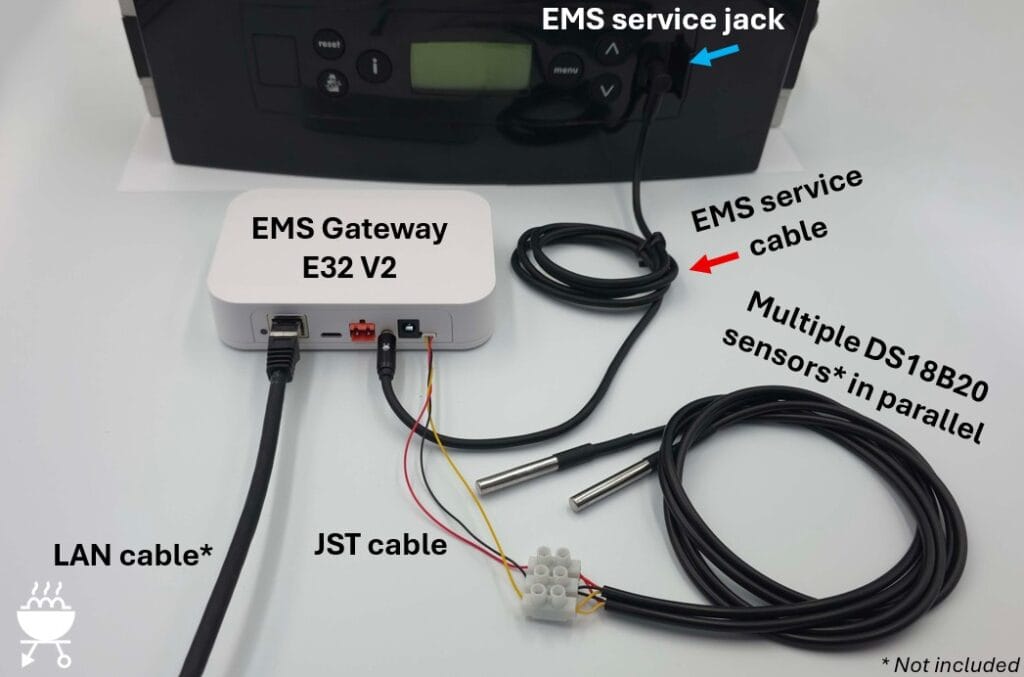
EMS E32 V2 Gateway connected to boiler via EMS service jack + optional DS18B20 sensors + LAN
Posted on

Choosing the correct firmware bin file for your BBQKees product

When you want to update via USB or you need to load a specific firmware version on your BBQKees Gateway, you have to upload the correct bin file to your Gateway or otherwise you may brick it.

For uploading a new firmware to your Gateway via USB you need to use the EMS-ESP flash tool. See the wiki here for more instructions. In some cases you can manually download the firmware, and upload it via the web interface of the Gateway.

On the EMS-ESP Github repository you can download the firmware bin files. The naming convention since firmware 3.6.5 is structured according to the chip type (chipset) and features, and does not have the name of a Gateway product in it.

It is structured like below:

EMS-ESP-<version>-<chipset>-<flashsize>[+].bin

where <chipset> is ESP32 or ESP32S3 and <flashsize> either 4MB or 16MB. The + indicates that the firmware is built to use any additional RAM (called PSRAM) if available.


See the EMS-ESP download info page here for more information.

If you want to upload a specific firmware version 3.7.2 to lets say a new E32 V2 Gateway, you first need to lookup which ESP32 chip is used. The E32 V2 has a ESP32 chipset with 16MB of Flash and 8MB of PSRAM. The filename of the bin file would then be EMS-ESP-3_7_2-ESP32-16MB+.bin.

Below a handy list about which Gateway model has which features and thus needs which firmware bin file.

So firmware version 3.7.2 for the EMS Gateway E32 V2 is this one:
https://github.com/emsesp/EMS-ESP32/releases/download/v3.7.2/EMS-ESP-3_7_2-ESP32-16MB+.bin

As a second example say you would like to get the 3.7.1 firmware for the S3 Gateway.
That’s the following bin file:
https://github.com/emsesp/EMS-ESP32/releases/download/v3.7.1/EMS-ESP-3_7_2-ESP32S3-16MB+.bin

ModelSide imageESP32 chip typeFlash storagePSRAM storageFirmware name ends with
E32 V2ESP3216MB8MB*-ESP32-16MB+.bin
S3 and S3-LRESP32-S316MB8MB-ESP32S3-16MB+.bin
S32 V2.0ESP3216MBnone*-ESP32-16MB.bin
S32 V1.1ESP324MBnone*-ESP32-4MB.bin
E32 V1.5ESP324MBnone
*-ESP32-4MB.bin
E32 V1.1-V1.4ESP324MBnone*-ESP32-4MB.bin

If you purchased an EMS interface board, you needed to get your own ESP32 development board. Because there are about 100 different ones available, please check carefully which ESP32 processor it has.
Next check the size of the Flash memory, and then if it has PSRAM.

Currently the most popular board is the Lilygo T7 S3. It has an ESP32-S3 chipset, 16MB of Flash and 8MB of PSRAM. For this one you need the bin file: EMS-ESP-3_7_2-ESP32S3-16MB+.bin.
Another popular cheap board is the MH-ET Live D1 Mini (or clone) module which have the ESP32 chipset, 4MB of Flash and no PSRAM. For this board you need the bin file: EMS-ESP-3_7_2-ESP32-4MB.bin

If you load a bin file without the ‘+’ on the end (meaning it is for boards without PSRAM) onto a ESP module that does have PSRAM on board, EMS-ESP will work. However, the PSRAM is not seen and not activated.

If you load a ‘+’ bin file on a board without PSRAM, it may not boot.

Posted on

Updated guide on integrating an EMS Gateway into your Home Assistant

I have updated the guide on how to connect an EMS gateway into Home Assistant.
The old guide was a bit outdated, and as most EMS Gateway customers use Home Assistant as their Home automation, up to date guides are necessary.

Logo wordmark Home Assistant

It uses a fresh install of Home Assistant version 2025.2.1 installed as HA OS on a Raspberry Pi as a starting point. So only the initial Home Assistant setup has been done. Creating a HA user and that’s it before we configure anything else.

Steps

In short these are the steps you need to take to get all the EMS entities into Home Assistant in a few minutes:

  • Log into Home Assistant
  • Create a new user in Home Assistant for MQTT
  • Install the MQTT integration in Home Assistant
  • Connect the EMS Gateway to the bus and log into the web interface
  • Configure the MQTT settings in the Gateway
  • BOOM! all entities will show up in Home Assistant within a few minutes.

See the following link to the wiki: https://bbqkees-electronics.nl/wiki/home-automations/home-assistant-configuration.html