Posted on

EMS Gateway E32 V2 connection examples

Below various ways to connect the EMS Gateway E32 V2 to the heat source (boiler/heat pump/etc), power and the home network. Also some examples of adding DS18B20 temperature sensors are shown.

There are two ways to connect the EMS Gateway to the EMS bus of the heat source:

  • EMS bus accessed via the EMS service jack and the BBQKees EMS service cable
  • EMS bus accessed via the EMS screw terminals inside the heat source

EMS connection via EMS service jack

The image below shows the most convenient method to connect the EMS Gateway by using the BBQKees EMS service cable plugged into the EMS Gateway and the EMS service jack of the heat source.
The EMS service jack has both EMS bus wires inside but also a third 12V DC power line for powering the Gateway.

If you use the WiFi feature of the EMS Gateway instead of the LAN port, this single cable is all there is to it!
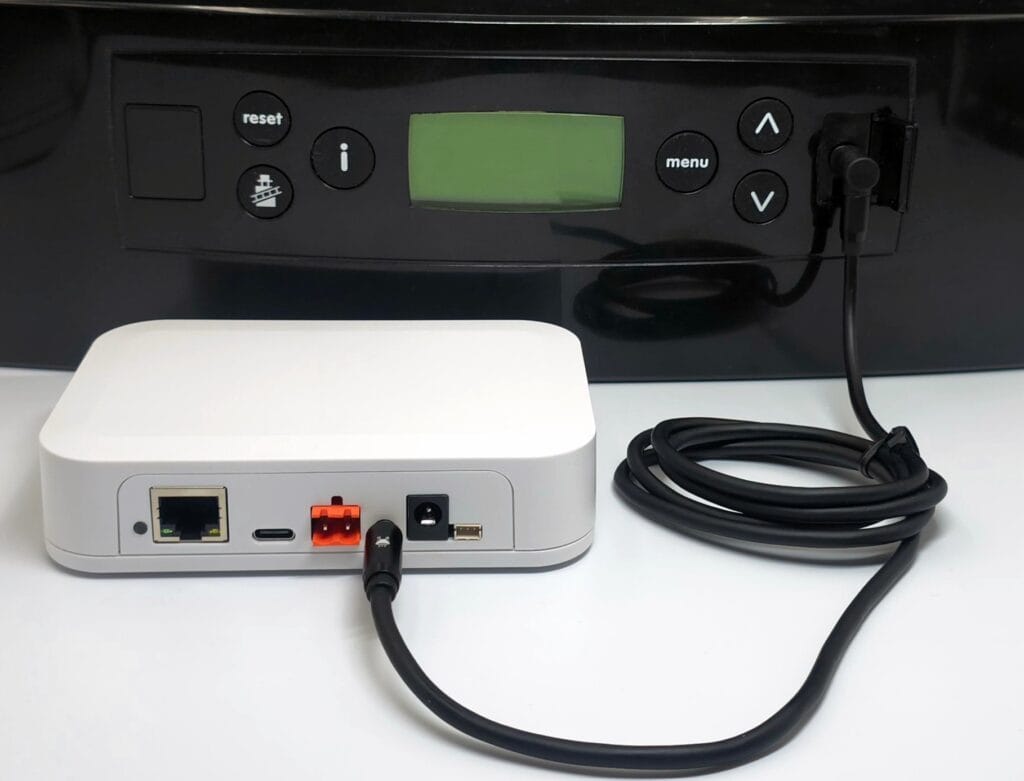
BBQKees Electronics EMS Gateway E32 V2 connected via EMS service cable

Even though the EMS service jack powers the EMS Gateway, you may want to connect the permanent power supply as well. When the heat source reboots, the 12V DC in the EMS service jack will often momentarily be removed so the Gateway will reboot as well. If this is not preferable you can prevent this by connecting the 12V DC or USB-C power supply to the Gateway as shown below.

Here we also attached a LAN cable, so the EMS Gateway connects to the home network via LAN instead of WiFi.
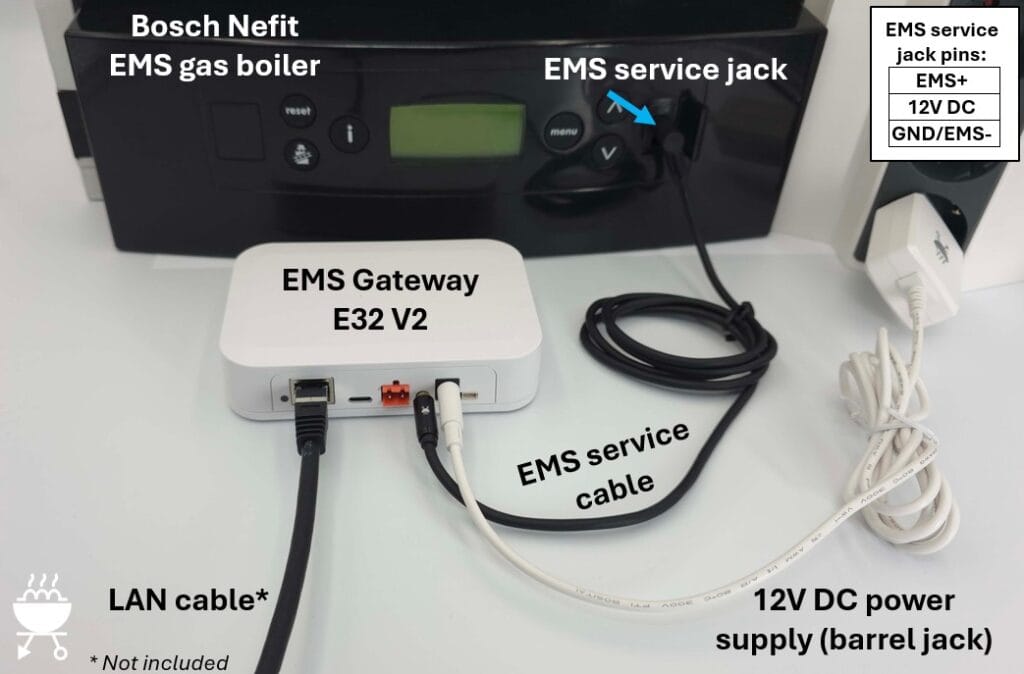
EMS E32 V2 Gateway connected to boiler via EMS service jack
EMS E32 V2 Gateway connected to boiler via EMS service jack + permanent power supply + LAN

Depending on when the EMS Gateway has been purchased the product box will have contained either a 12V DC power supply with a barrel jack plug, or a 5V DC USB-C power supply. Just use the type of power supply that came with your EMS Gateway KIT.
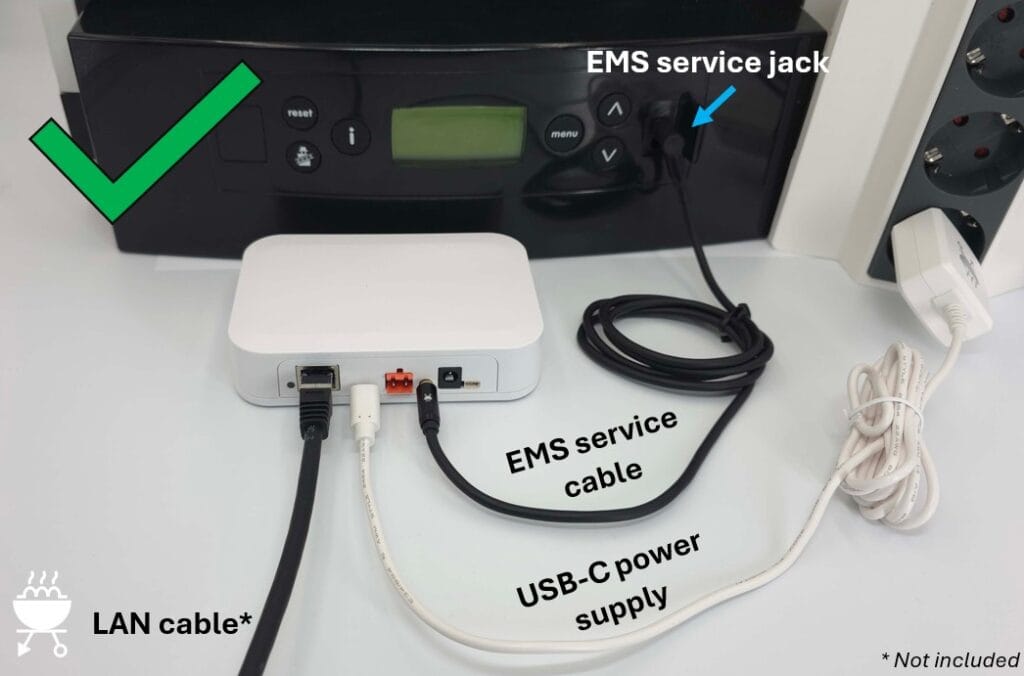
EMS E32 V2 Gateway connected to boiler via EMS service jack + permanent power supply (USB-C) + LAN

EMS connection via EMS bus screw terminals

When the EMS service jack is not available on your heat source you can connect the EMS Gateway to the EMS screw terminal inside the heat source. Even if your heat source does have an EMS service jack, but you do not want to use it for some reason, you can also use this alternative bus connection method.
Depending on the specific model of boiler or heat pump the EMS bus may be indicated by a number of different icons or markings like ‘BUS’, ‘EMS’, ‘BB’. In general the EMS bus plug is orange on boilers, but usually blue on heat pumps.

Always consult the heat source manual and our extensive product wiki to make sure you are connecting the EMS Gateway to the correct screw terminals. Also turn off the mains power to the heat source before working on it.

If you make use of the EMS screw terminals inside the heat source, you always need to connect an external power supply to the EMS Gateway as well (12V DC in the image below).
This is because the EMS bus cannot power the EMS Gateway over the EMS bus data line.
In the image below the EMS Gateway connects to your home network via WiFi.
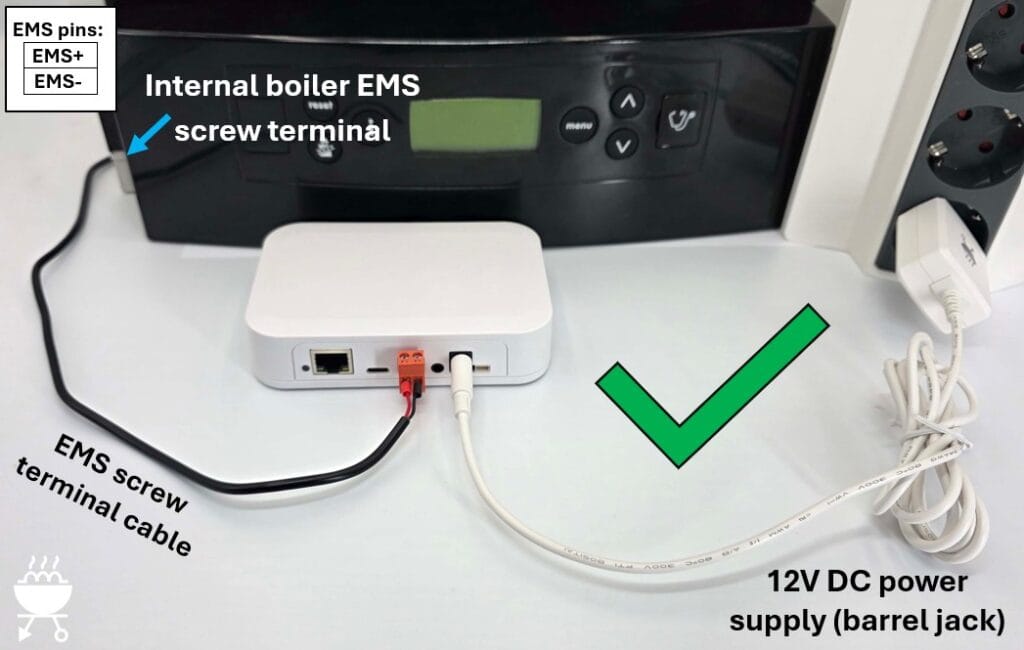
EMS E32 V2 Gateway connected to boiler via EMS screw terminals + permanent power supply + WiFi
EMS E32 V2 Gateway connected to boiler via EMS screw terminals + permanent power supply (12V DC) + WiFi

In the image below you see the alternative USB-C power supply. The EMS Gateway is connected to the home network via a LAN cable.
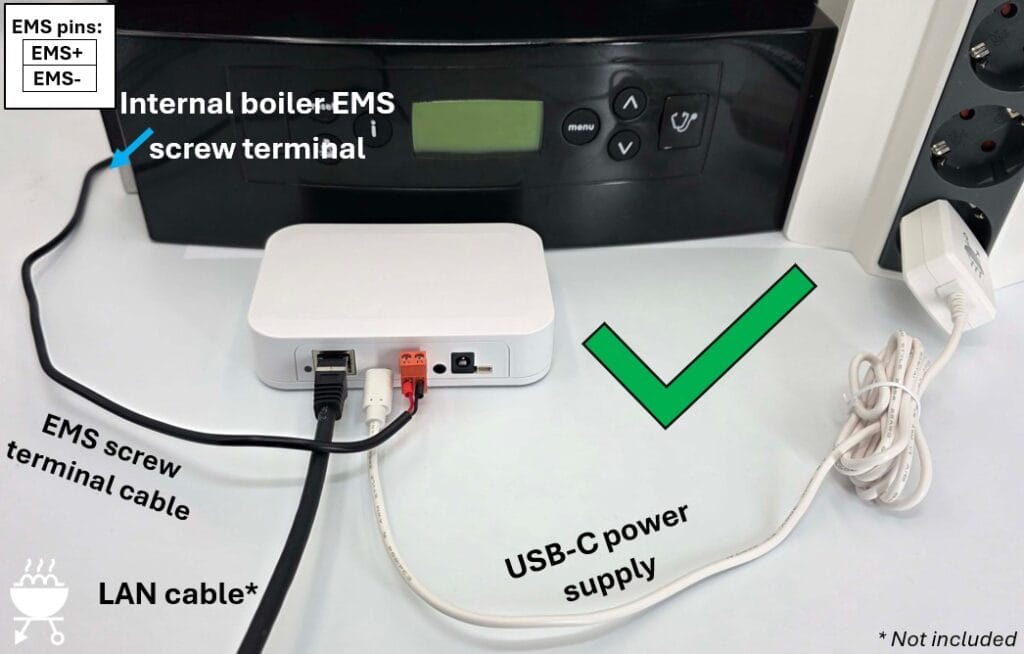
EMS E32 V2 Gateway connected to boiler via EMS screw terminals + permanent power supply (USB-C) + LAN

WRONG connection method

The EMS Gateway can be connected to the EMS heat source via the EMS service jack OR the EMS screw terminal. NEVER connect both at the same time. The EMS bus signals EMS+ and EMS- are present in both cables. If you connect both simultaneously, you have a 50% chance of short cutting the EMS bus.

Also NEVER connect the EMS bus of two independent heat sources together.
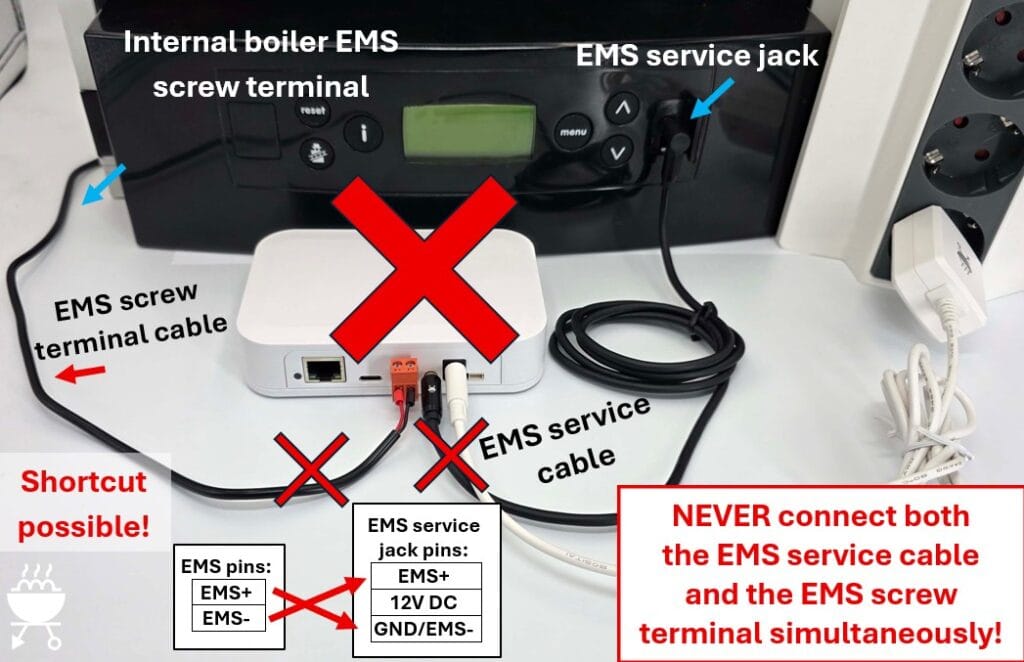
Forbidden simultaneous connection of both EMS service cable and EMS screw terminals

Adding DS18B20 temperature sensors

A convenient feature of the EMS Gateways is the possibility to connect (multiple) DS18B20 temperature sensors.
The EMS-ESP firmware automatically recognizes them and will send the temperature information to your home automation as well.

You need to source these DS18B20 sensors yourself. There are several types of these sensors but the most often you will see them in the waterproof version with a cable attached.

Simply attach one or more of these sensor cables to the small JST cable that is included with each Gateway. Make sure you follow the correct wire colors.
The best way to wire multiple sensors together is by soldering. However, in most cases using a screw terminal or some WAGO clamps will work as well.
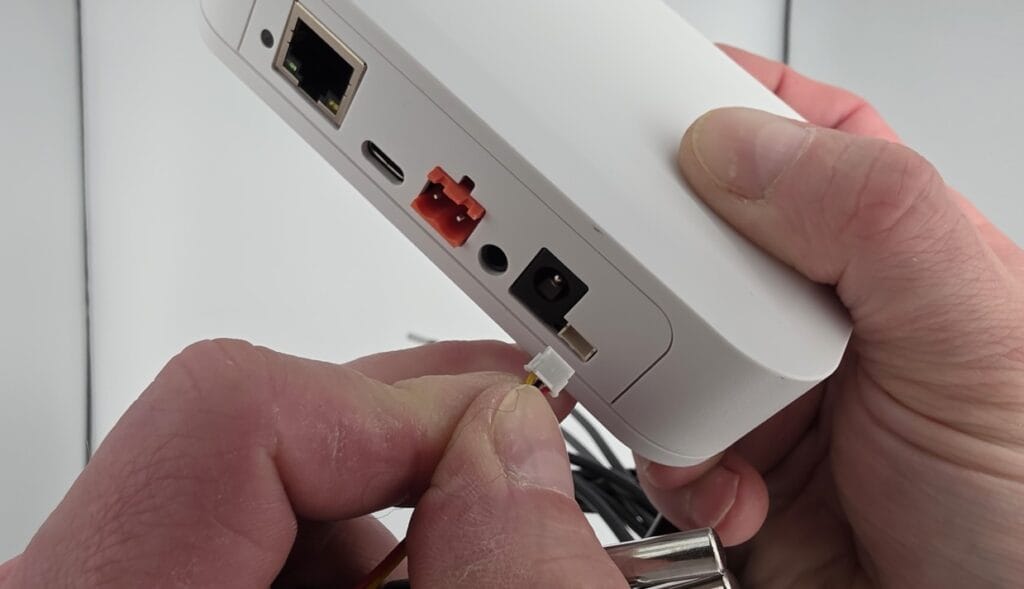
When you are sure it is wired up correctly you can insert the JST cable into the EMS Gateway.
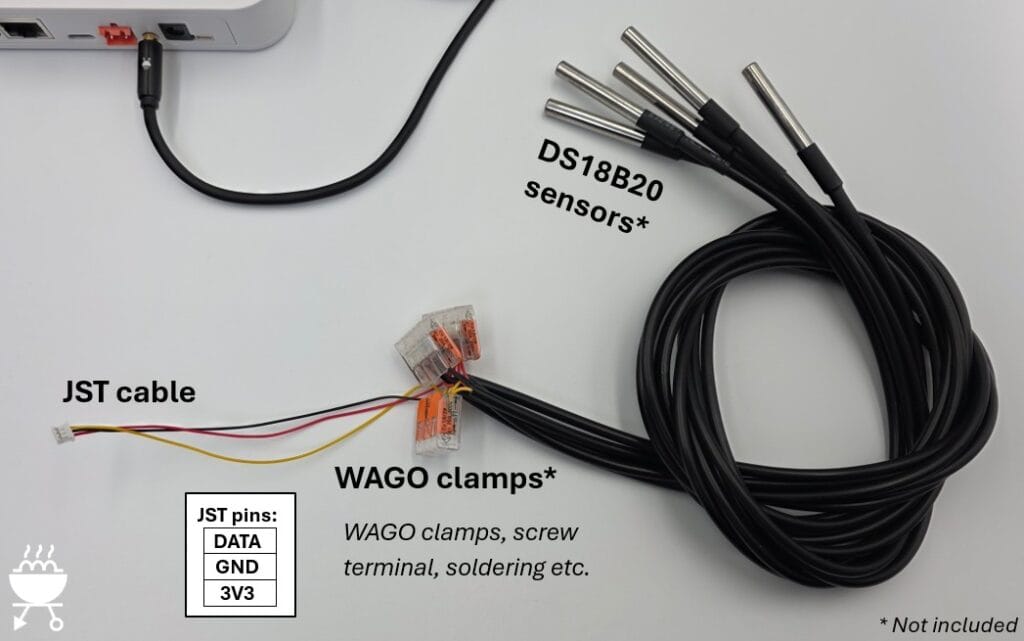
DS18B20 sensors on Gateway E32 V2 via WAGO clamps

In the example below the DS18B20 sensors are wired together with a screw terminal (Lusterklemme). The EMS Gateway is connected to the boiler via the EMS service jack and to the home network via WiFi.
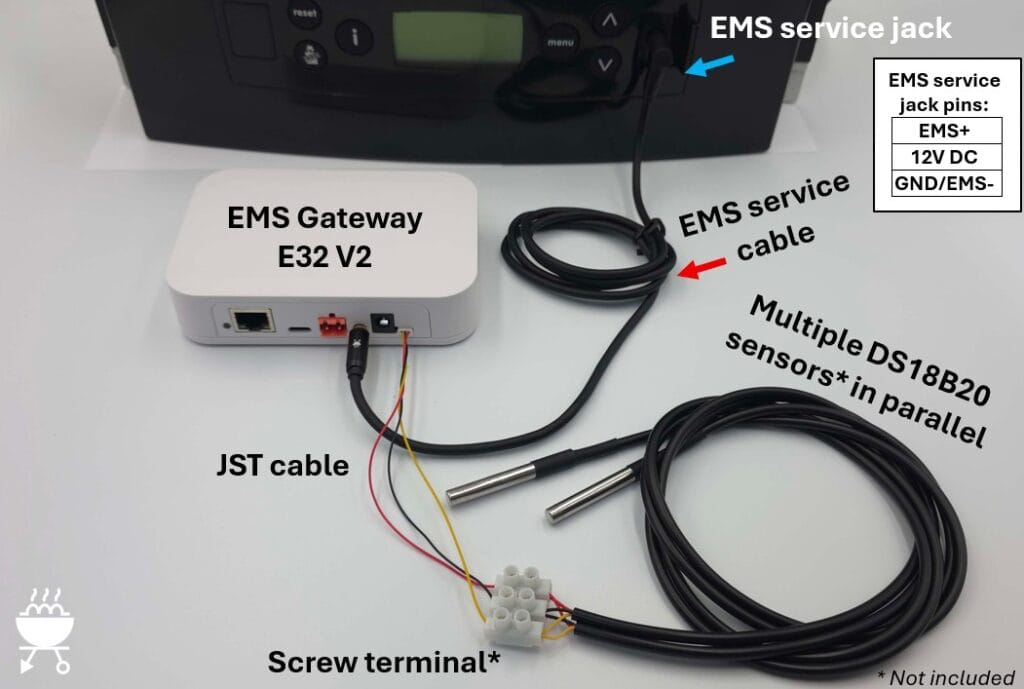
EMS E32 V2 Gateway connected to boiler via EMS service jack + optional DS18B20 sensors + WiFi

As a final example below a LAN cable is attached so the EMS Gateway connects to the home network via LAN instead of WiFi.
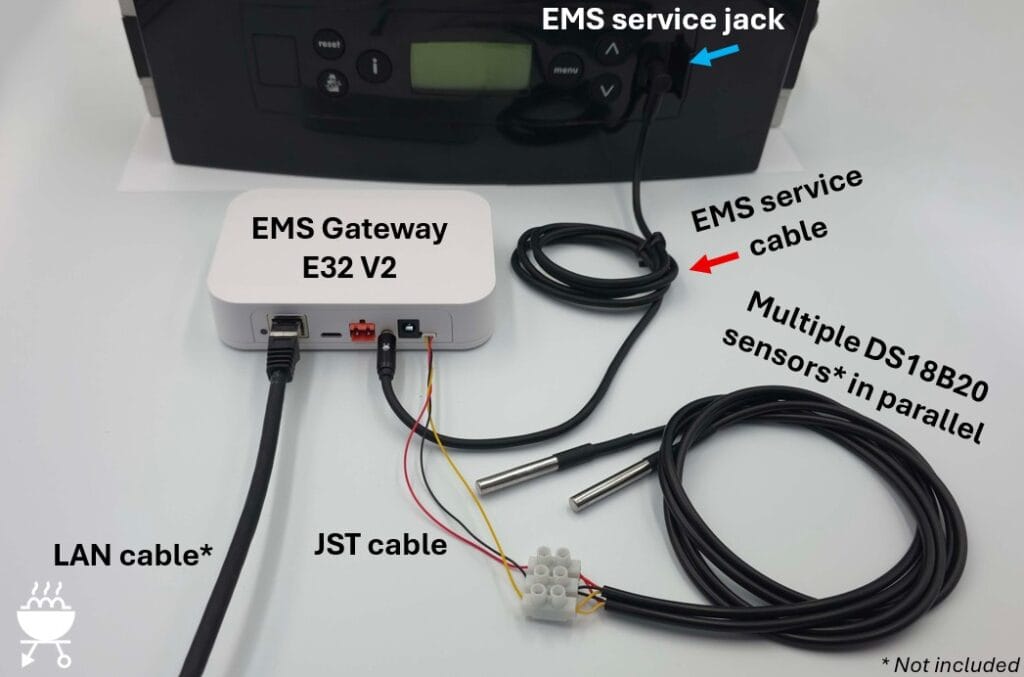
EMS E32 V2 Gateway connected to boiler via EMS service jack + optional DS18B20 sensors + LAN
Posted on

Support for iRT boilers like the Nefit Ecomline

This month we had a little breakthrough: you can now use older iRT boilers like the Nefit Ecomline with our EMS Gateways.

Some history

We looked at support for iRT boilers like the Nefit Ecomline and Buderus GB112 in 2019 and concluded at the time the iRT bus was a too different ‘beast’ than the EMS bus.
In those ‘EMS early days’ (pre-corona times) someone figured out that in his situation he could read out the iRT bus with just a very small modification to the EMS circuit of the BBQKees EMS interface board.
The only thing you would have to do was to remove a single pull down resistor and solder another one as a pull up. Others wanted to do the same and because of the demand we sold these ‘modded’ EMS interface boards directly for a while.

But many users failed to get the communication working at all. Even with different resistor values. After some further reverse engineering we concluded that iRT is really a different kind of bus and to get it working properly it needed a dedicated control circuit, and not just a resistor swap on the EMS interface boards.
This meant we had to design a complete iRT Gateway, just for the old boilers. At the time it did not make sense to put in the effort and resources.

A new start

So in 2019 we stopped looking at iRT boilers at all until early 2026 when a BBQKees customer reported back to us he was succesfully using the EMS Gateway E32 V2.2 with his old Nefit Ecomline boiler. He could also see and control his Nefit Module 300 (similar to the Buderus RC35) thermostat connected to the Ecomline boiler.

How was this possible? Well basically pretty ‘easy’.
By connecting the Moduline thermostat and the Ecomline boiler to the Nefit Easy Connect module.
This is a protocol converter that converts the iRT signal to EMS and vice versa. It was introduces alongside with the Nefit Easy thermostat to be able to connect the Easy thermostat to non-EMS boilers (iRT and OpenTherm).
As the Moduline 300 thermostat he had can work with both iRT and EMS, you can keep the thermostat while adding the Easy Connect. The EMS Gateway was connected in parallel to the thermostat on the ‘thermostaat’ screw terminal on the Easy Connect module.

We already knew this Easy Connect module existed but we thought that it would not provide boiler and thermostat parameters on the EMS bus. But we were wrong. You actually see almost all of the same entities as with EMS boilers!

Nefit Easy Connect module
EMS-ESP device Nefit Ecomline

What Nefit module are you talking about and where can I get one?

Unfortunately this Nefit Easy Connect module (with Bosch product number 7746901787) has been discontinued long ago, but you can still buy them second hand on the Dutch Marktplaats for like 25 Euro.


For those not living in the Netherlands there is fortunately another Bosch module that is still sold and works too. Its the Bosch EasyControlAdapter. Its sold in Europa for about 50 Euro. The Bosch product number is 7736701654 and the EAN code is 4057749920027.
You can download the PDF manual of this device directly from the Bosch home comfort website HERE.

Front page manual Bosch EasyConnectAdapter (Image copyright Bosch)
Connection diagram Bosch (Image copyright Bosch)


We tested it and there is no difference in function between the Nefit Easy Connect and the Bosch EasycontrolAdapter. In fact when we opened both casings we saw that the circuits on both circuit boards are 100% identical, except that the Bosch device has an additional relay.

How to connect everything

Below you can see my high-end Word schematic drawing:

iRT boiler to EMS Gateway schematic

The connections are pretty simple. Disconnect the existing thermostat from screw terminals 3 and 4 inside the boiler.
Connect the Nefit Easy Connect or Bosch EasyControlAdapter to these terminals 3 and 4 (polarity does not matter).
On the Nefit Easy Connect you need to connect screw terminal 3 and 4 to the right screw terminal named ‘cv-toestel’.
On the Bosch EasyControlAdapter you connect screw terminal 3 and 4 to the right screw terminal with the flame icon (red arrow below).

On the other screw terminal (left one) of the protocol converter you connect both the EMS thermostat and the EMS Gateway in parallel. On the Nefit Easy Connect it’s the screw terminal named ‘thermostaat’ and on the Bosch it’s the screw terminal with the thermostat icon (Blue arrow below).
The EMS Gateway MUST be connected via the orange screw terminal and NOT with the EMS service cable.

iRT to EMS bus schematic Bosch (Image copyright Bosch)

Next you insert the power plug from the power supply into the Nefit or Bosch protocol converter. And you connect the BBQKees power supply of the Gateway as well.

Note: you CANNOT use the EMS service cable from the EMS Gateway KIT with iRT boilers!
Although there is a 3.5mm port on iRT boilers where you can plug in something, it is NOT an EMS port but a dedicated iRT service port which uses a mono plug. If you plug in the EMS Gateway here, you basically either shortcut the iRT bus or you connect the EMS Gateway in series with the iRT bus which can damage either or both devices.

Does it work for my iRT boiler?

We have tested this on several Nefit Ecomline and Ecomline Elite boilers. It has not yet been tested on the identical Buderus models like the GB112. We assume it will work. If you would like to try it out, let us know and we can borrow you a Nefit converter with your EMS Gateway purchase to see if works in your situation. If it does not, you return everything for a full refund and if it does work you return the Nefit converter to us and you can purchase a New Bosch converter yourself.

Posted on

Product updates Q3 2025

Product ID fixed

Most products are now getting an internal code ID ‘burned’ into the memory of the ESP32 chip during production to identify the product and the batch number of its’ circuit board.
The latest EMS-ESP development firmware 3.7.3 version 15 or higher will detect this ID and fix the board profile accordingly.
Firmware 3.7.3 is not a stable release yet, but as the latest stable 3.7.2 does not have the internal code to look for this ID, all production boards which contain a product ID are loaded with the 3.7.3 dev15 or higher firmware.

In the past, a faulty firmware update could for instance reset the board profile to the default S32, which would render the Ethernet port inoperable. You would then have to log in via WiFi, set the board profile back to E32 V2 and reboot to get the Ethernet port working.
With the product ID fixed inside the ESP32, the firmware will then automatically recover and use the correct board profile.
If you are a developer who likes to play with custom board profiles on a BBQKees Gateway product, you need to take into account that the default EMS-ESP firmware will keep setting the board profile according to the product ID found.

The product ID is burned into the ESP32 chip, so this is persistent over firmware updates and will even survive a full erase of the flash memory.

How can I check if a product ID has been set?

If you visit the Hardware tab on the Status page of the web interface, the ‘Hardware device’ will show the BBQKees logo and will tell you which board revision and batch number it is.
If it does not show the BBQKees logo and give just the ESP32 chip revision, it will not have the product ID fixed.

Alternatively, you can use the terminal to check. Open a terminal on the Gateway via Telnet or serial en type in ‘show’.

If there is no fixed product ID, the model description will be empty. If a product ID was found, it will show the specification. Below on the left a board with product ID and on the right a board without product ID.

What happens when I load new firmware on a BBQKees product without a product ID?

Nothing will happen to the board settings when you update the firmware on an existing BBQKees product without fixed product ID. So it is backwards compatible.
However, if the product ID is set, any firmware from 3.7.3 dev15 and onward will fix the board profile to the one belonging to the product ID. So custom board profiles may be overruled.
If you use a custom board profile on a genuine BBQKees board you are probably a developer yourself so you will know how to change the board profile back to a custom one.

Discontinuation of the EMS Gateway S3

The manufacturer of the grey enclosure of the S3 and S3-LR Gateways has stopped production entirely earlier this year. We purchased all remaining stock we could find but our S3 enclosure inventory is almost depleted now.

Because of this, we were forced to revisit our product portfolio.
The S3 and E32 V2 Gateway models have only slight differences aside from the absence of LAN/Ethernet on the S3. As the more feature-rich Gateway E32 V2 is already our existing main product, we basically have an S3 ‘successor’ at hand.
Designing an completely new S3-like product in a new enclosure from scratch is a huge amount of work. It’s not just selecting an enclosure and fitting the circuit board to this new box, but you need to go through all the regulatory and compliance testing again which is both a pain in the ass and expensive. And after that create new manuals, instructions, design new packaging, incur new GTIN/EAN fees, etc etc.
Therefore we decided to focus solely on the E32 V2 instead of creating an additional successor of the S3.

Over the past 2 years we had plenty of time to refine the existing E32 V2, which will be able to handle all the stuff we can think of in the coming years thanks to its big and future proof 16MB Flash and 8MB PSRAM memory.

Time frame remaining stock

We will discontinue the S3 product line after the current stock has sold. We expect to sell out within a number of weeks or by the end of Q3 2025 at the latest. So if you like to get your hands on a small WiFi-only EMS Gateway you have to decide soon!
There will not be a sale on the remaining S3 or S3 KIT products. Business customers who would to get some S3 before it sells out, just send us an email for a quote.

The previously available S3-LR will not get into new production anymore obviously (we had a number of people on a waiting list).

Warranty and parts availability

The S3 Gateway will still be supported in future EMS-ESP firmware releases and you still get the 2-year BBQKees warranty. We are committed to long term service and are thus keeping an inventory of spare boards and other S3 parts for warranty replacements.

Posted on

Adding DS18B20 temperature sensors to your Gateway (without soldering)

This guide will show you how to easily add some DS18B20 temperature sensors to your BBQKees EMS Gateway.
No soldering skills necessary.

You can add DS18B20 sensors to all BBQKees Gateways ever made by using the small 3-wire JST cable that is supplied with each Gateway order.

The easiest to use are waterproof DS18B20 sensors with a cable. These are cheap and convenient to use.
We do not sell these sensors, they are available at many places online.


You can add a number of these sensors in parallel to a Gateway. The specific number varies depending on the length of the cable and the type of DS18B20 sensor used. But in general 10 sensors is usually not a problem.

Make sure the sensors are all of the same DS18B20 sub-type and do not mix parasitic mode with normal mode wiring.

Prerequisites and parts

  • BBQKees EMS Gateway
  • 3-wire JST ZH cable
  • DS18B20 waterproof sensors with cable
  • 3 Wago 221 splicing connector with levers or f.i. a ‘lusterklemme’
  • Wire stripper
Parts for adding DS18B20 sensors

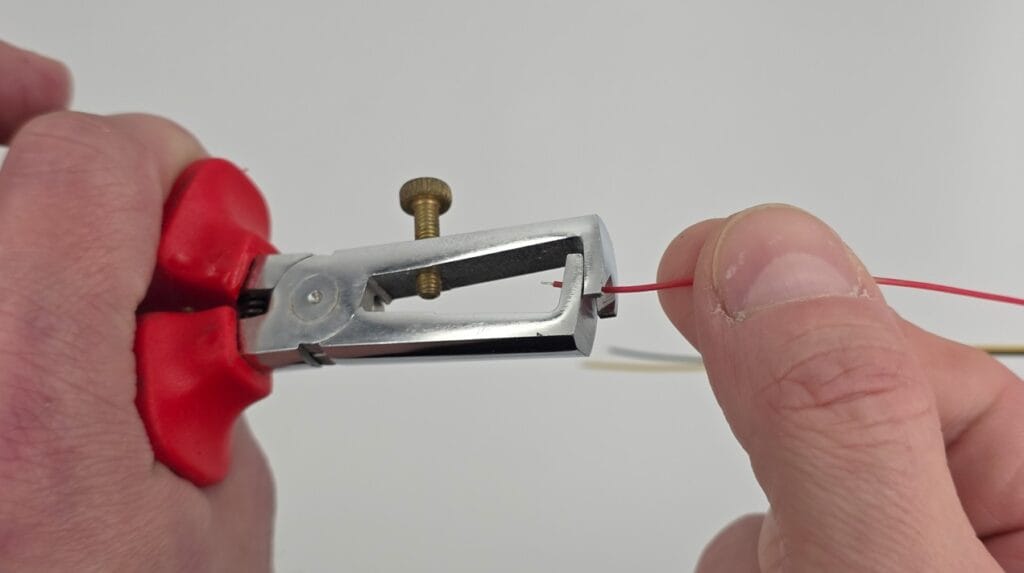
Step 1: Strip the wires on the JST cable

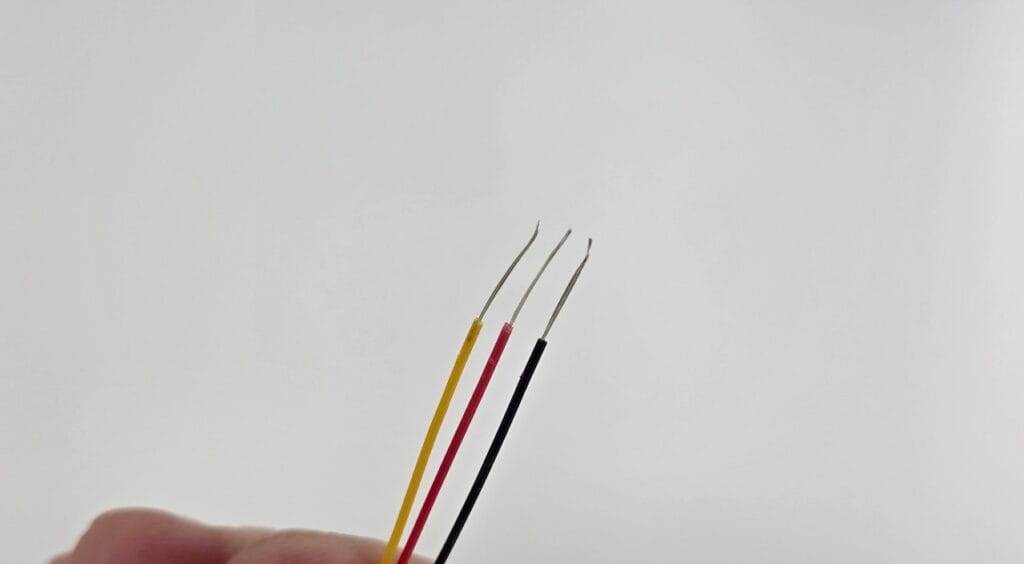
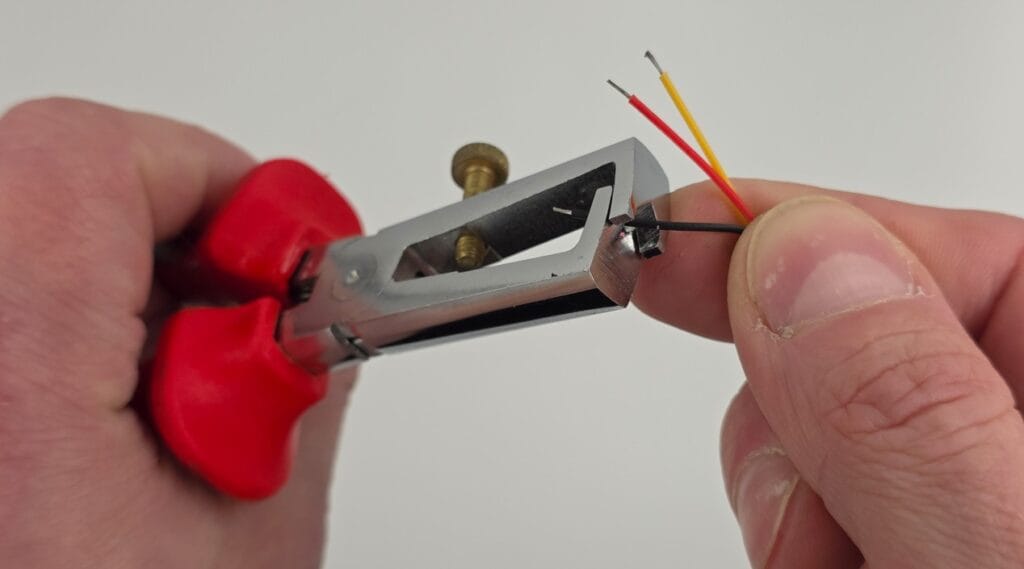
You need to strip the wires on the JST cable by about 10mm. If the wire ends are soldered, it’s better to cut them off at the point of the wire insulation before stripping. This will make stripping the wires easier.

Stripping JST cable
Stripped JST cable

Step 2: Strip the wires on the DS18B20 sensors

Strip them 10mm, or at least the same length as you stripped the JST cable.

Step 3: Tie the wire ends together

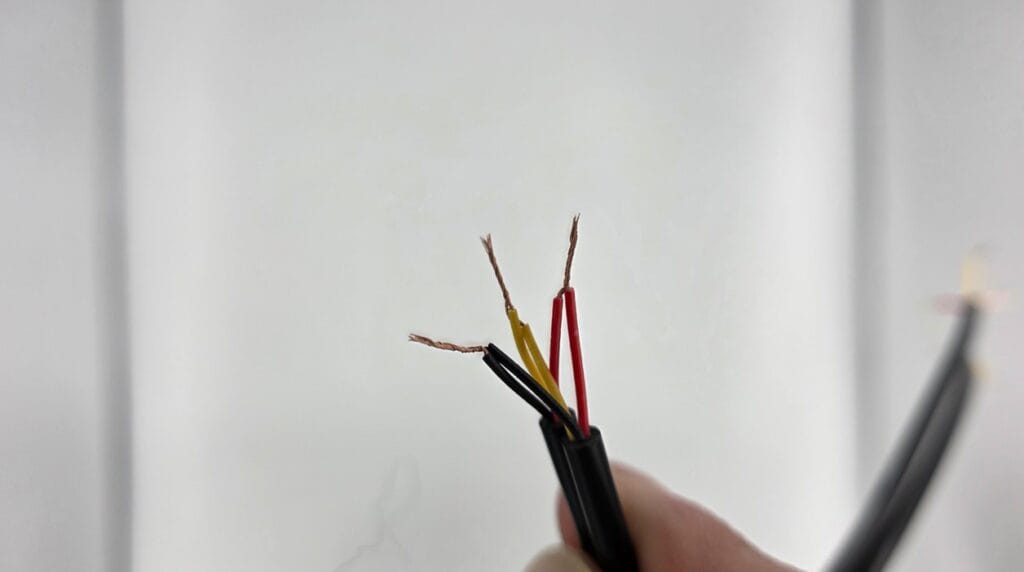
Tie the wire ends together. Tie each color separately. So all yellow wires together, all black wires together and all red wires together.
If there are too many cables, you can also do 2 or 3 cables each time.

Tied cables

Step 4: Put each wire color in a separate Wago clamp

This step is where you could make the most errors so be careful here.

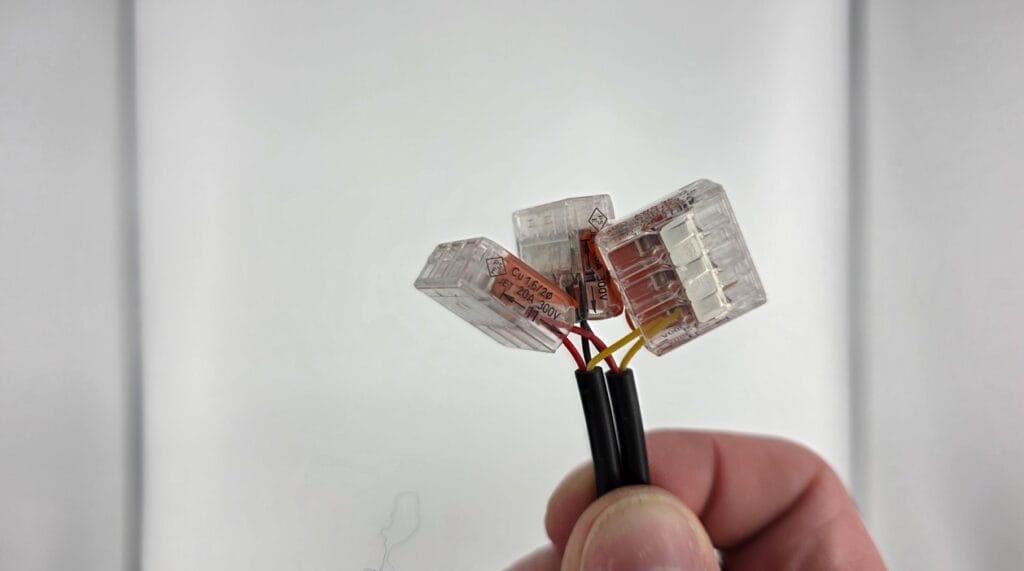
You need to insert each cable bundle of it’s own color into a separate Wago clamp.
DO NOT put any other wire color in the same clamp as this will cause shortcuts.

Wire ends in Wago clamps
End result DS18B20 sensors in Wago clamps

Step 5: Insert the JST plug into the EMS Gateway

Insert the JST plug into the JST connector in the Gateway. You need to keep the flat part of the plug at the top. Make sure it is fully inserted. See the image below for the correct orientation.

It’s best to turn off the Gateway before doing this. If the Gateway does not boot afterwards, you made a shortcut in the wiring.

Inserting the JST cable

Step 6: Check the EMS-ESP web interface and rename the sensors

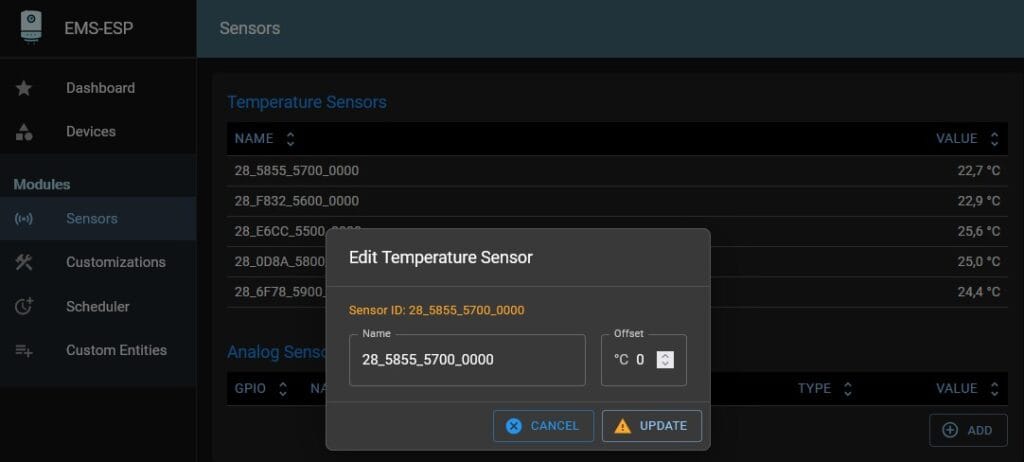
If everything went correct, you will see the sensors appearing in the Sensors tab in the web interface.

Sensors tab EMS-ESP web interface

Each DS18B20 sensor has it’s own unique address identifier. These identifiers are displayed.
You can click on one to rename it.
After you rename a sensor, it is also renamed in MQTT and Home Assistant etc.

Renaming sensors

If you added a bunch of sensors at the same time, it can be hard to distinguish them.
You can heat each sensor separately with f.i. a hair dryer or heat gun and see which one gets hotter.

And that’s it!

Posted on

Updated guide on integrating an EMS Gateway into your Home Assistant

I have updated the guide on how to connect an EMS gateway into Home Assistant.
The old guide was a bit outdated, and as most EMS Gateway customers use Home Assistant as their Home automation, up to date guides are necessary.

Logo wordmark Home Assistant

It uses a fresh install of Home Assistant version 2025.2.1 installed as HA OS on a Raspberry Pi as a starting point. So only the initial Home Assistant setup has been done. Creating a HA user and that’s it before we configure anything else.

Steps

In short these are the steps you need to take to get all the EMS entities into Home Assistant in a few minutes:

  • Log into Home Assistant
  • Create a new user in Home Assistant for MQTT
  • Install the MQTT integration in Home Assistant
  • Connect the EMS Gateway to the bus and log into the web interface
  • Configure the MQTT settings in the Gateway
  • BOOM! all entities will show up in Home Assistant within a few minutes.

See the following link to the wiki: https://bbqkees-electronics.nl/wiki/home-automations/home-assistant-configuration.html

Posted on

28 October 2024: Firmware 3.7.0 release now available

After 6 months and 47 beta versions EMS-ESP32 firmware 3.7.0 has finally been released. It packs hundreds of improvements, new features and bug fixes.

Updating to 3.7.0 from 3.7.0dev

If you were already on a development version of 3.7.0, you can update the firmware via the update feature of the web interface.

Updating from 3.6.4 or 3.6.5 to 3.7.0

If you are currently on 3.6.4 or 3.6.5, you cannot update via the web interface directly.

Clicking on the bin file will result in an error. This is because after 3.6.5 the firmware bin file naming scheme has changed, so the 3.6.5 firmware is looking for a bin file on the Github repository that does not exist.

In this case go to the releases page of the firmware repository and download the correct bin file.

You can use the table here for getting the right file.

After you have downloaded this file to your computer, you can upload it via the EMS-ESP web interface.

After the reboot of the Gateway, press F5 to clear the browser cache otherwise there may still be some left overs of the old interface in the cache, causing strange UI combinations of both the old and the new user interface.

Possible issue with updating to 3.7.0 with the E32 V2

In some cases after the new firmware upload, the Ethernet interface of the E32 V2 may be disabled. Don’t worry, it’s not dead. In these cases the board profile of the firmware has accidentally defaulted to the S32 Gateway, which has no Ethernet.

To correct this, log in to the ems-esp WiFi network, go to settings and change the board profile to E32 V2. Then save and reboot and Ethernet will become alive again.