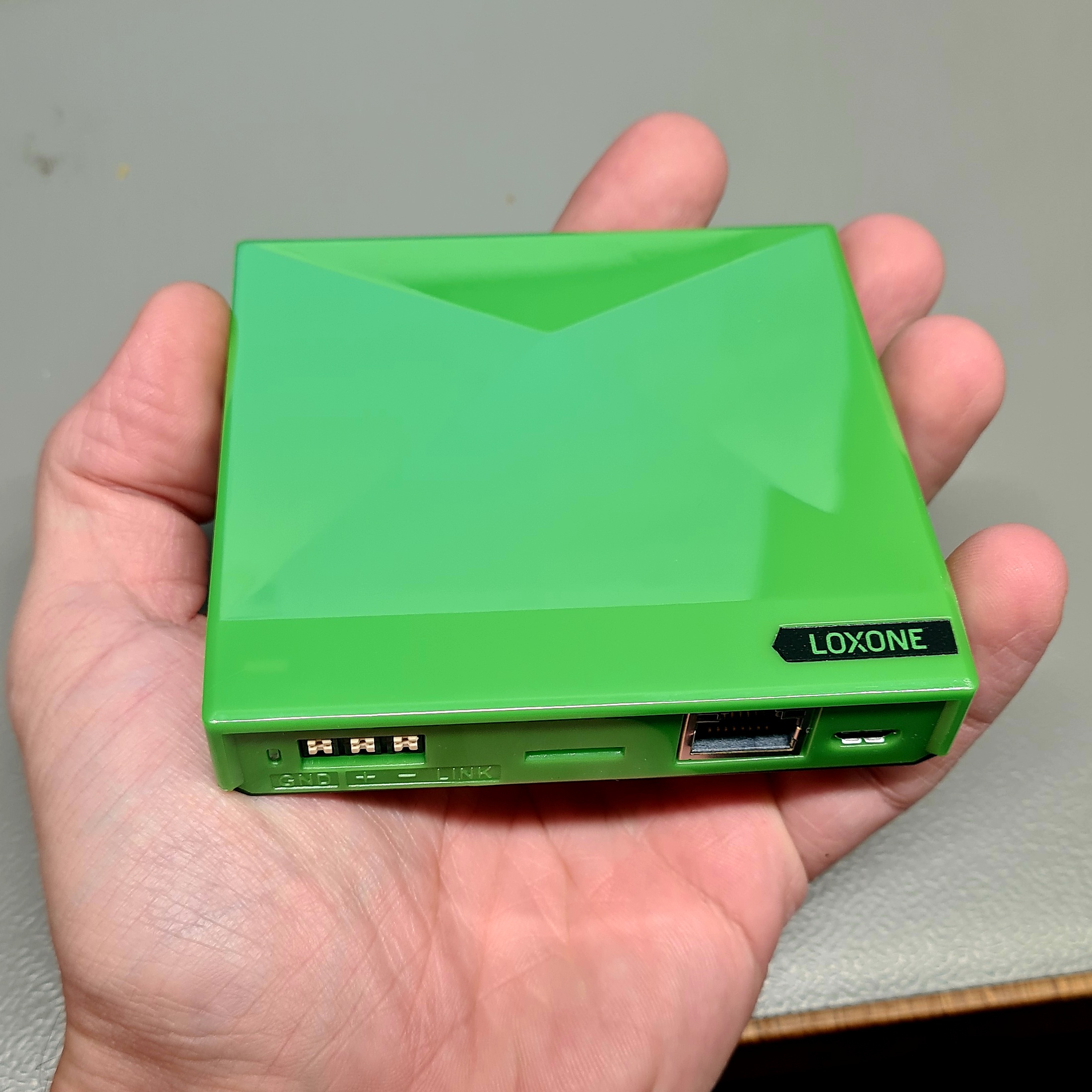
This month we had a little breakthrough: you can now use older iRT boilers like the Nefit Ecomline with our EMS Gateways.
Some history
We looked at support for iRT boilers like the Nefit Ecomline and Buderus GB112 in 2019 and concluded at the time the iRT bus was a too different ‘beast’ than the EMS bus.
In those ‘EMS early days’ (pre-corona times) someone figured out that in his situation he could read out the iRT bus with just a very small modification to the EMS circuit of the BBQKees EMS interface board.
The only thing you would have to do was to remove a single pull down resistor and solder another one as a pull up. Others wanted to do the same and because of the demand we sold these ‘modded’ EMS interface boards directly for a while.
But many users failed to get the communication working at all. Even with different resistor values. After some further reverse engineering we concluded that iRT is really a different kind of bus and to get it working properly it needed a dedicated control circuit, and not just a resistor swap on the EMS interface boards.
This meant we had to design a complete iRT Gateway, just for the old boilers. At the time it did not make sense to put in the effort and resources.
A new start
So in 2019 we stopped looking at iRT boilers at all until early 2026 when a BBQKees customer reported back to us he was succesfully using the EMS Gateway E32 V2.2 with his old Nefit Ecomline boiler. He could also see and control his Nefit Module 300 (similar to the Buderus RC35) thermostat connected to the Ecomline boiler.
How was this possible? Well basically pretty ‘easy’.
By connecting the Moduline thermostat and the Ecomline boiler to the Nefit Easy Connect module.
This is a protocol converter that converts the iRT signal to EMS and vice versa. It was introduces alongside with the Nefit Easy thermostat to be able to connect the Easy thermostat to non-EMS boilers (iRT and OpenTherm).
As the Moduline 300 thermostat he had can work with both iRT and EMS, you can keep the thermostat while adding the Easy Connect. The EMS Gateway was connected in parallel to the thermostat on the ‘thermostaat’ screw terminal on the Easy Connect module.
We already knew this Easy Connect module existed but we thought that it would not provide boiler and thermostat parameters on the EMS bus. But we were wrong. You actually see almost all of the same entities as with EMS boilers!


What Nefit module are you talking about and where can I get one?
Unfortunately this Nefit Easy Connect module (with Bosch product number 7746901787) has been discontinued long ago, but you can still buy them second hand on the Dutch Marktplaats for like 25 Euro.
For those not living in the Netherlands there is fortunately another Bosch module that is still sold and works too. Its the Bosch EasyControlAdapter. Its sold in Europa for about 50 Euro. The Bosch product number is 7736701654 and the EAN code is 4057749920027.
You can download the PDF manual of this device directly from the Bosch home comfort website HERE.


We tested it and there is no difference in function between the Nefit Easy Connect and the Bosch EasycontrolAdapter. In fact when we opened both casings we saw that the circuits on both circuit boards are 100% identical, except that the Bosch device has an additional relay.
How to connect everything
Below you can see my high-end Word schematic drawing:

The connections are pretty simple. Disconnect the existing thermostat from screw terminals 3 and 4 inside the boiler.
Connect the Nefit Easy Connect or Bosch EasyControlAdapter to these terminals 3 and 4 (polarity does not matter).
On the Nefit Easy Connect you need to connect screw terminal 3 and 4 to the right screw terminal named ‘cv-toestel’.
On the Bosch EasyControlAdapter you connect screw terminal 3 and 4 to the right screw terminal with the flame icon (red arrow below).
On the other screw terminal (left one) of the protocol converter you connect both the EMS thermostat and the EMS Gateway in parallel. On the Nefit Easy Connect it’s the screw terminal named ‘thermostaat’ and on the Bosch it’s the screw terminal with the thermostat icon (Blue arrow below).
The EMS Gateway MUST be connected via the orange screw terminal and NOT with the EMS service cable.

Next you insert the power plug from the power supply into the Nefit or Bosch protocol converter. And you connect the BBQKees power supply of the Gateway as well.
Note: you CANNOT use the EMS service cable from the EMS Gateway KIT with iRT boilers!
Although there is a 3.5mm port on iRT boilers where you can plug in something, it is NOT an EMS port but a dedicated iRT service port which uses a mono plug. If you plug in the EMS Gateway here, you basically either shortcut the iRT bus or you connect the EMS Gateway in series with the iRT bus which can damage either or both devices.
Does it work for my iRT boiler?
We have tested this on several Nefit Ecomline and Ecomline Elite boilers. It has not yet been tested on the identical Buderus models like the GB112. We assume it will work. If you would like to try it out, let us know and we can borrow you a Nefit converter with your EMS Gateway purchase to see if works in your situation. If it does not, you return everything for a full refund and if it does work you return the Nefit converter to us and you can purchase a New Bosch converter yourself.


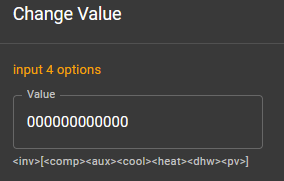
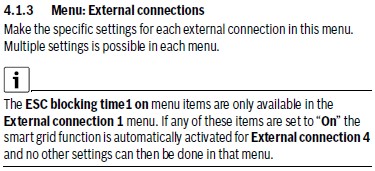
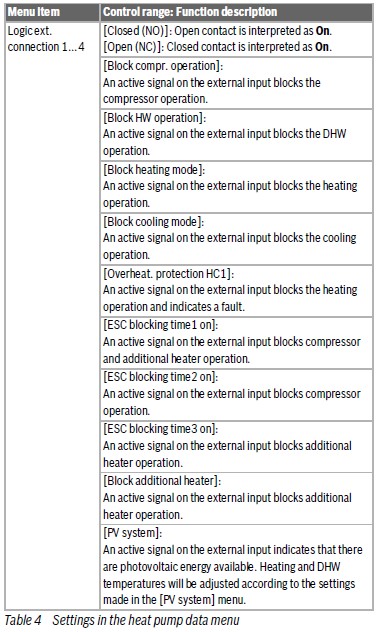

 Lately I’m getting more questions about the integration of the EMS Gateway with Loxone.